Trying the new Azure Functions managed connectors - Dataverse trigger
Managed connectors in Azure Functions
Azure Functions just got a major upgrade on the way: managed connectors are officially here! Similar to the Logic Apps connectors bringing an extra touch of simplicity to coded solutions.
You can now build function triggers that listen directly to:
- Power Platform
- Microsoft 365
- Microsoft Teams
- SharePoint
Wondering how to set up these connections since we are dealing with code?
Since this feature is currently in preview, it may not be the final approach yet but I’ll show you how simple it is. You won’t find a built-in template for it inside Visual Studio 2026. Instead, the best place to kick things off is the official samples page here: Azure-Samples/functions-connectors-net: Azure Functions samples showcasing Connector triggers and bindings.
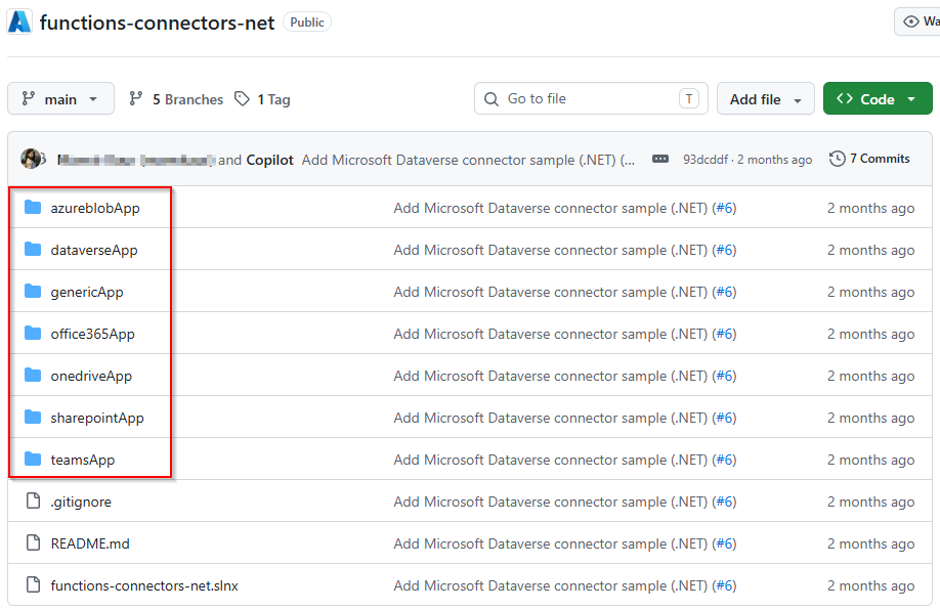
Select the one that suits your integration case. For now, they have the above. For this demo, I’ll show how to connect to Dataverse.
Prerequisite to compile and deploy the above:
- Azure Developer CLI (azd)
- Azure CLI (az) ≥ 2.75.0
- .NET 10 SDK
- A Microsoft Dataverse environment and an account with access to the target table
- connector-namespace Azure CLI extension — install with:
- # Bash
curl -fsSL https://aka.ms/connector-namespace-cli-install | sh
or
# PowerShell
irm https://aka.ms/connector-namespace-cli-install-ps | iex
Once you clone the sample and install all the above, open “local.settings.json” and add the organisation URL (something.crm#.dynamics.com) and the entity you want to listen to. Plural name.
You do not need to worry about the connector just yet! We will get there soon.
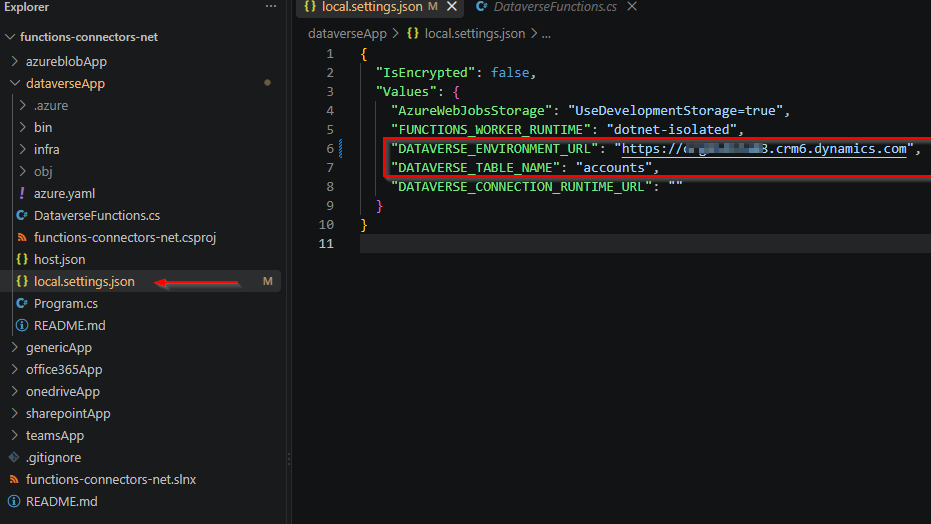
Now, save it all and run this command sequence:
cd dataverseApp

azd auth login

az login

# Configure the trigger (name is auto-resolved to the org URL; or set the URL directly).
azd env set DATAVERSE_ENVIRONMENT_NAME "Contoso (default)"
azd env set DATAVERSE_TABLE_NAME "accounts"

azd up
line 3 and 5 are simple authentication. will prompt you to authenticate.
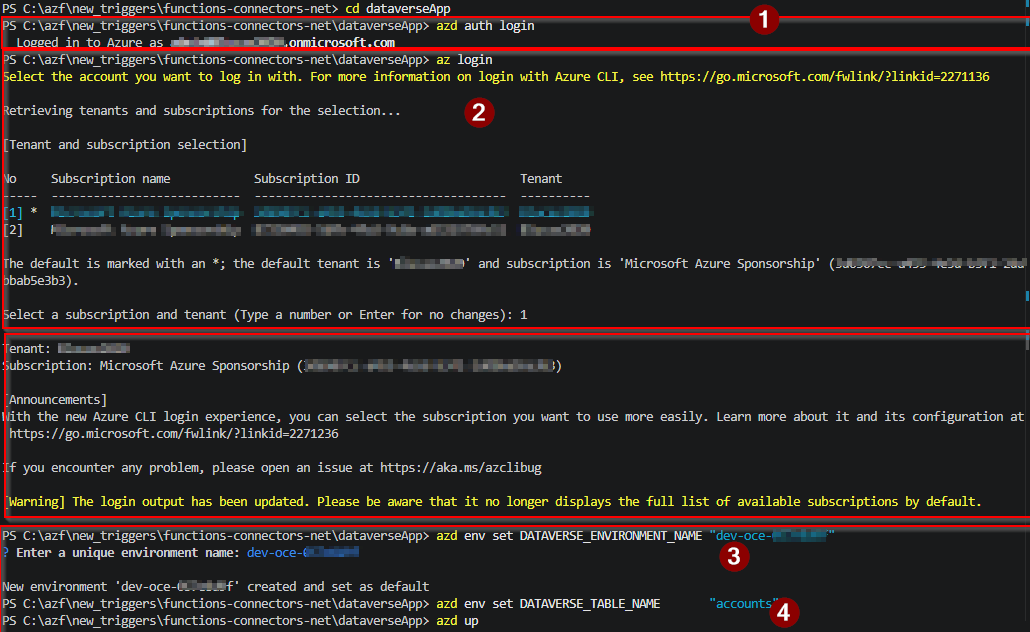
The next 2 you add the name of the organisation as you see in make.powerautomate.com and again the entity name
AZD UP will start the deployment. It will provision the function app,
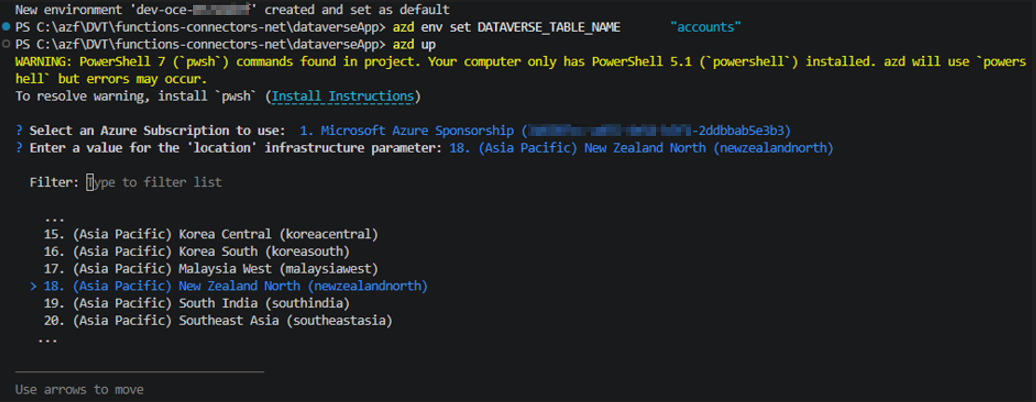

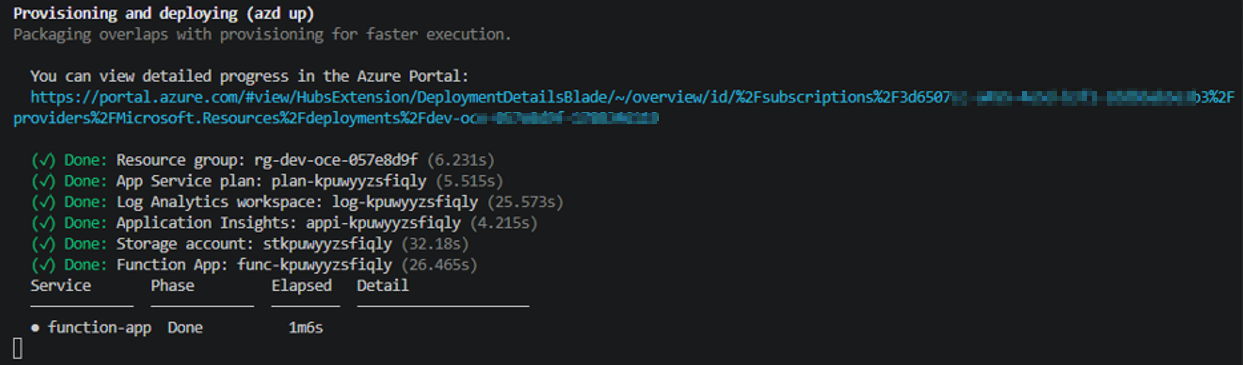
Result:
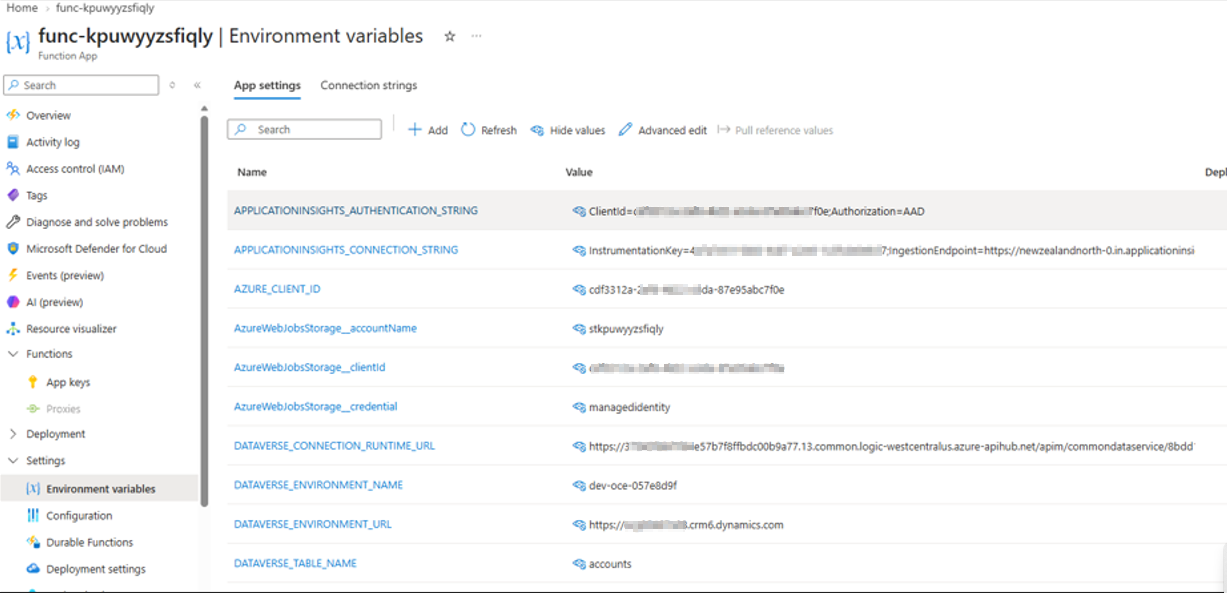
After the provisioning, it will prompt this
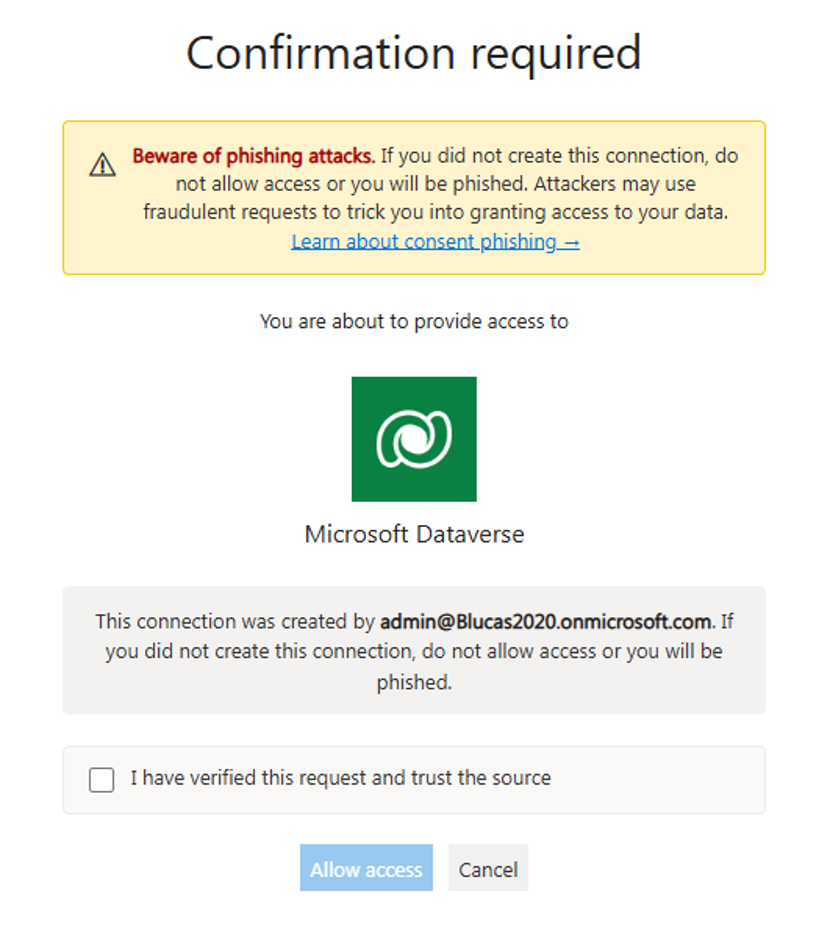 And there you go!
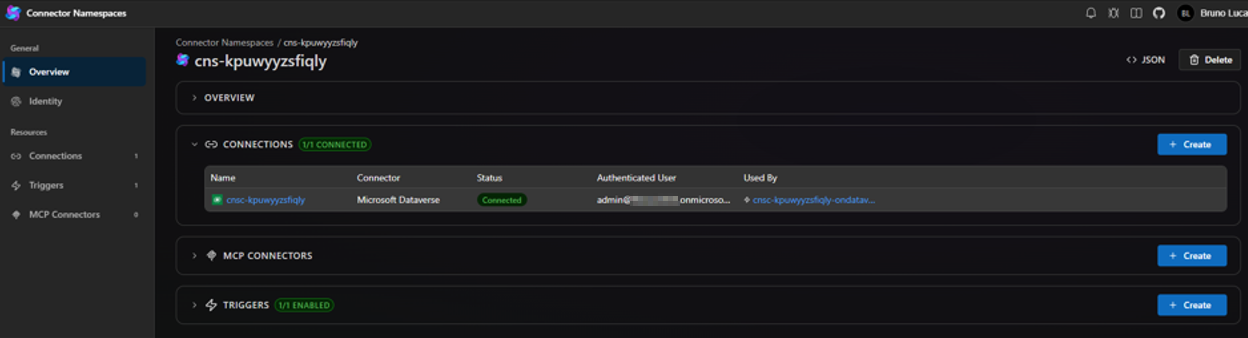
If you didn’t get the above to auto-pop, run this:
azd env set DATAVERSE_TABLE_NAME "contacts"

azd provision # re-applies app settings + access policies

azd hooks run postdeploy
cnsc-kpuwyyzsfiqly-ondataverserowchanged
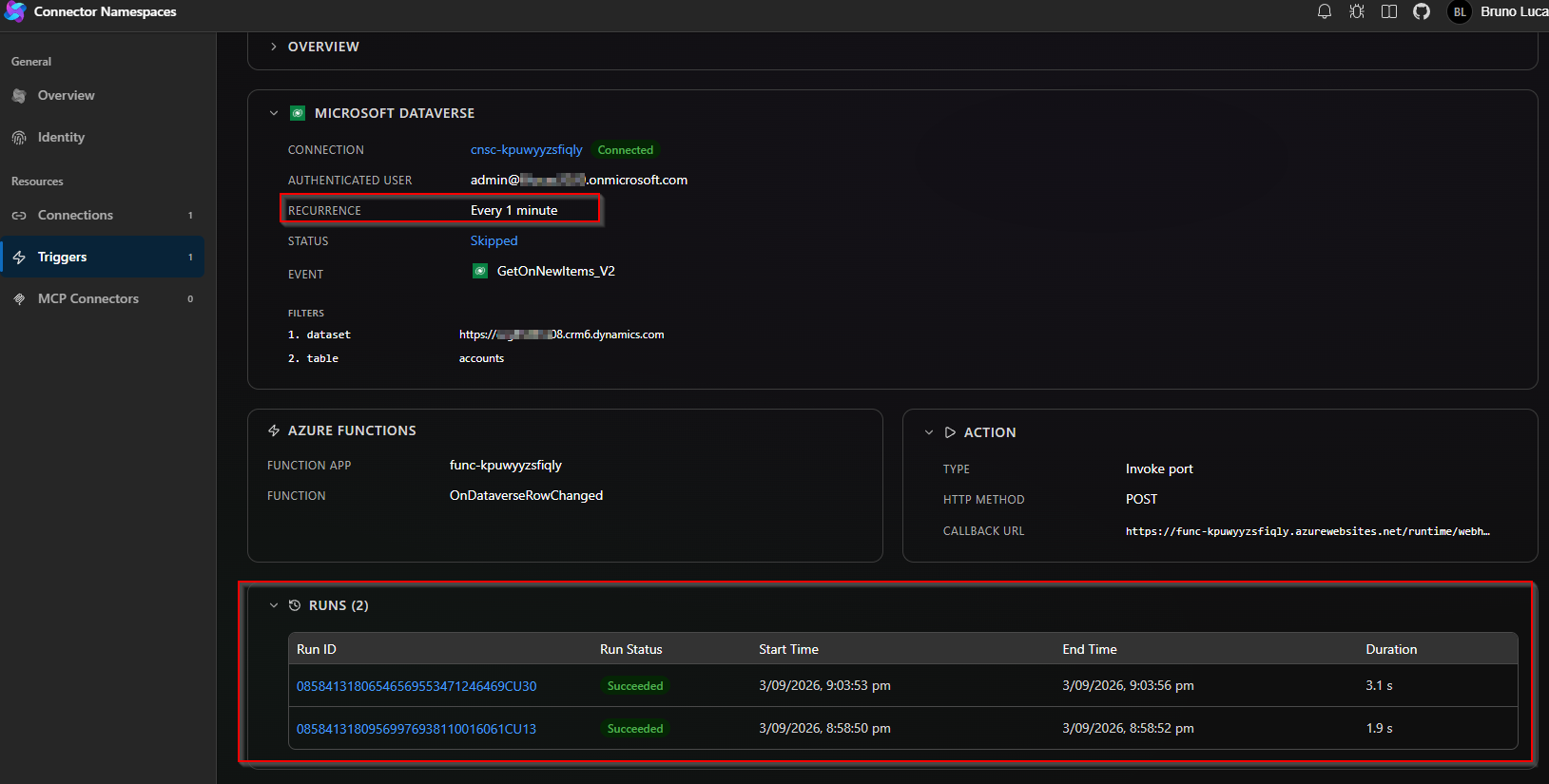
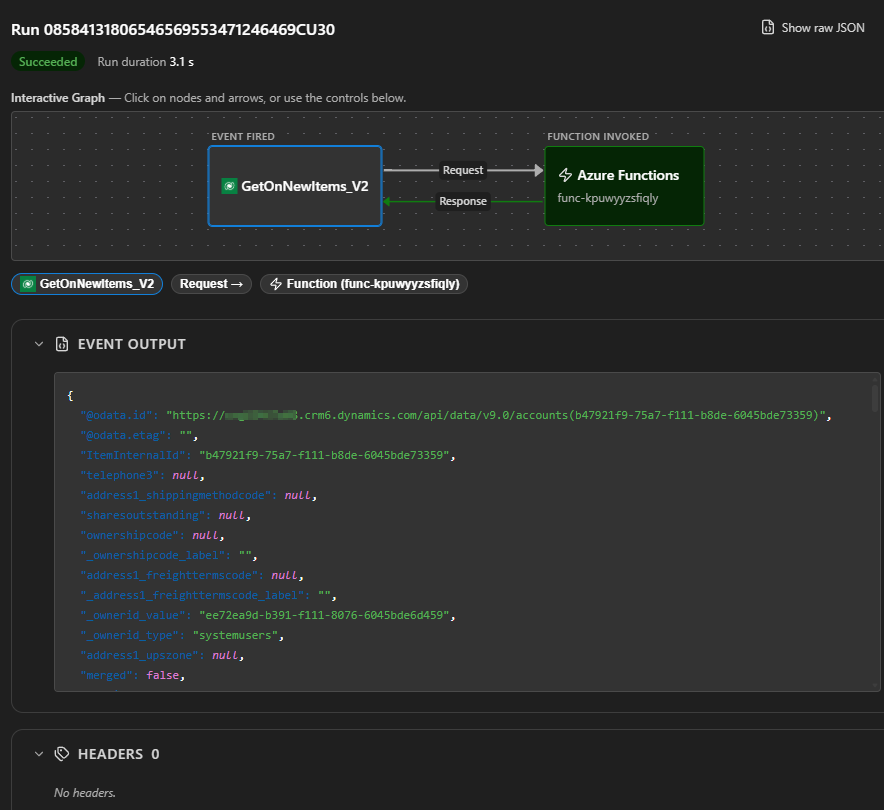
The control panel has the connector details and can display something similar to the logic apps execution views
Open make.power.com and add a few rows to Account. Remember this trigger for now only capture “Create”.
Top of the page there is an edit button that doesn’t do as much as the edit.
 Use Edit Json to change the recurrence if you want. Default is 5 min. Bit long to debug.
 \<>
\<>